win10系统Application Identity服务无法设置,并提示“拒绝访问”,这该怎么办呢?有部分用户在更新完Win10系统后,碰到了Application Identity服务不能设置自动启动,为了尽快解决该问题,小编带来了win10系统不能开启Application Identity服务自动的解决办法,希望能帮到大家。  系统之家 Ghost Win10 32位 稳定专业版 V2022.03 [电脑系统] 系统之家 Ghost Win10 32位 稳定专业版保留原版系统的所有特点,只进行优化,不进行删减。并且系统只做精准的流程和优化,并在追求原有性能和兼容性的基础上。有需要的朋友们欢迎下载体验。
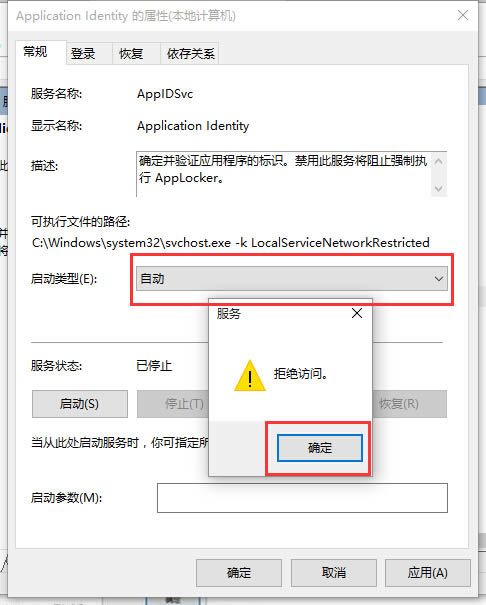
Application Identity服务无法设置自动解决方法
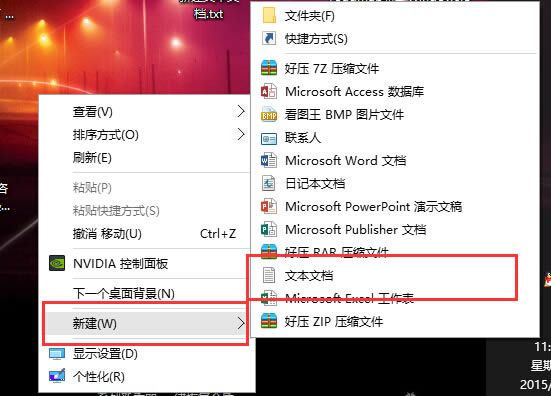
一、在桌面空白地区,右键点一下新建TXT文本文本文档;
二、在里面输入如下所示代码,并保存退出;
@echo off
sc start AppIDSvc
exit

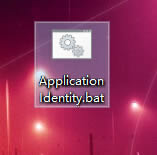
三、将txt文本文本文档重命名为Application Identity.bat;
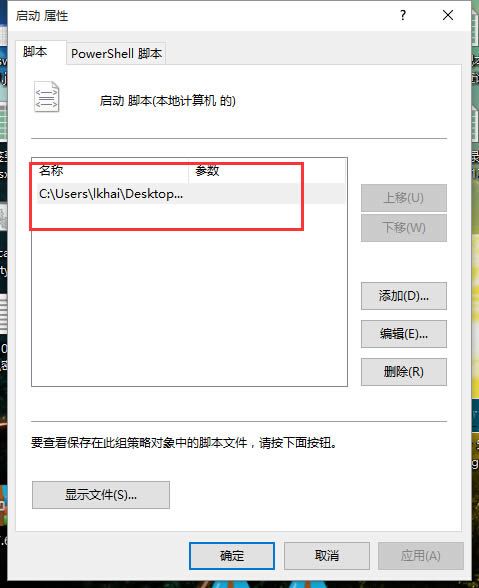
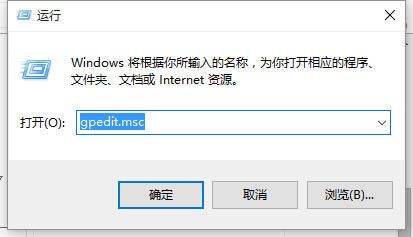
四、WIN R键调出运行,输入gpedit.msc,调出组策略;
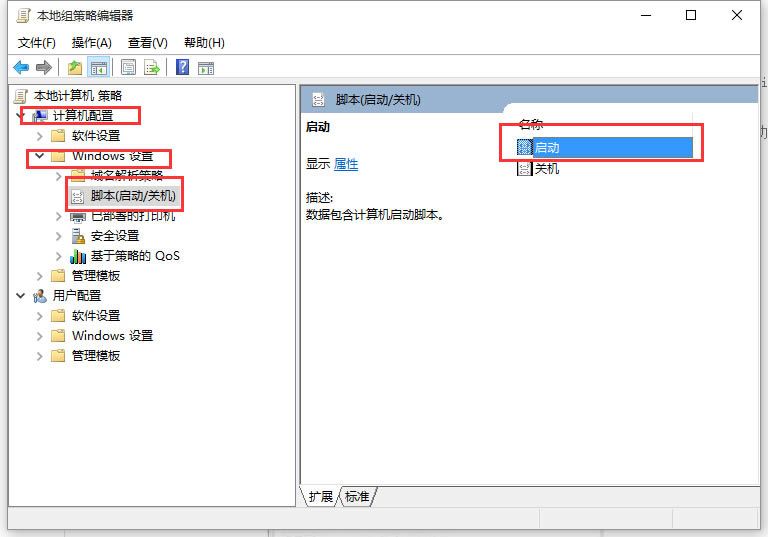
五、精准定位到计算机配备---Windows设置---脚本制作(启动/关机)---启动;
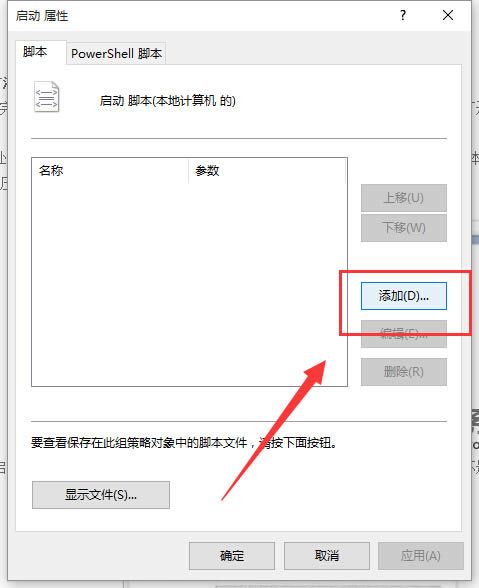
六、双击鼠标“启动”后,点一下添加;
七、特定到刚制作出来的Application Identity.bat文件上;
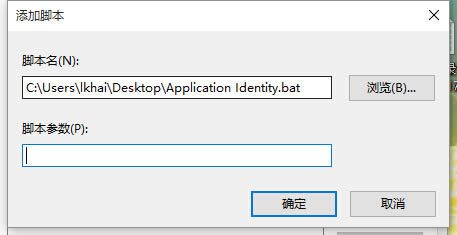
八、点一下确定就可以,重启后此服务会正常的开启。